
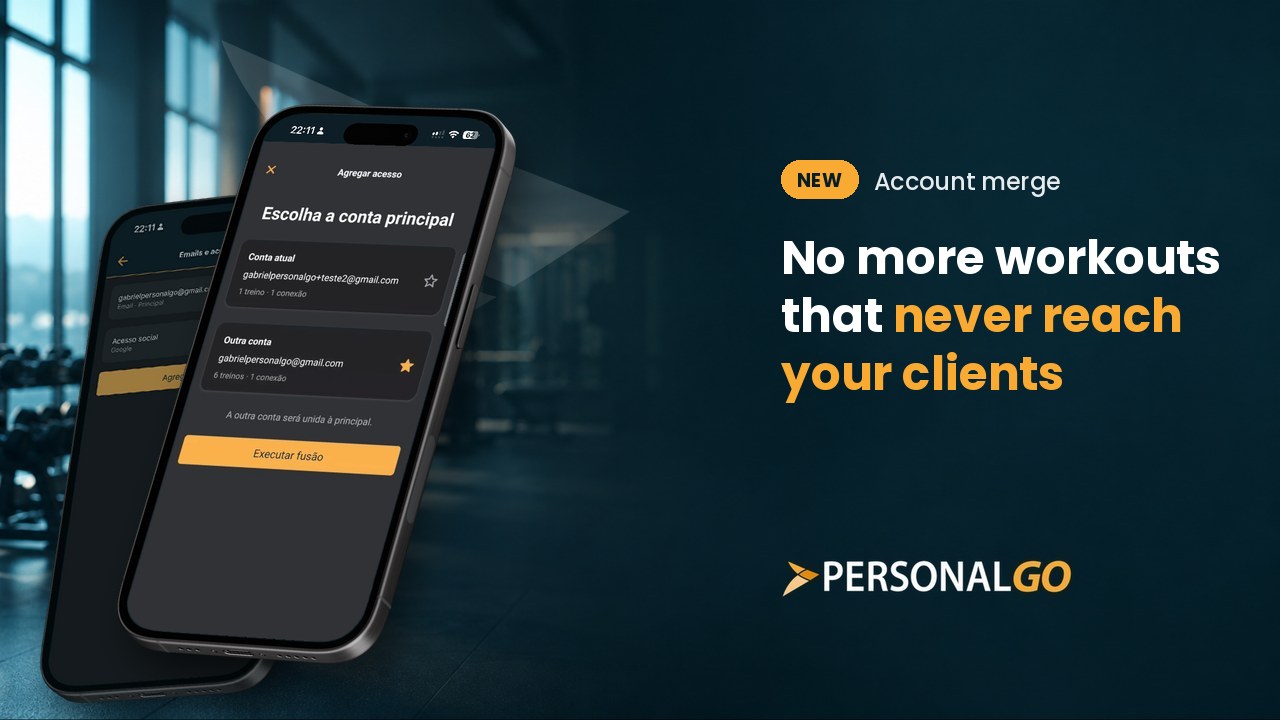
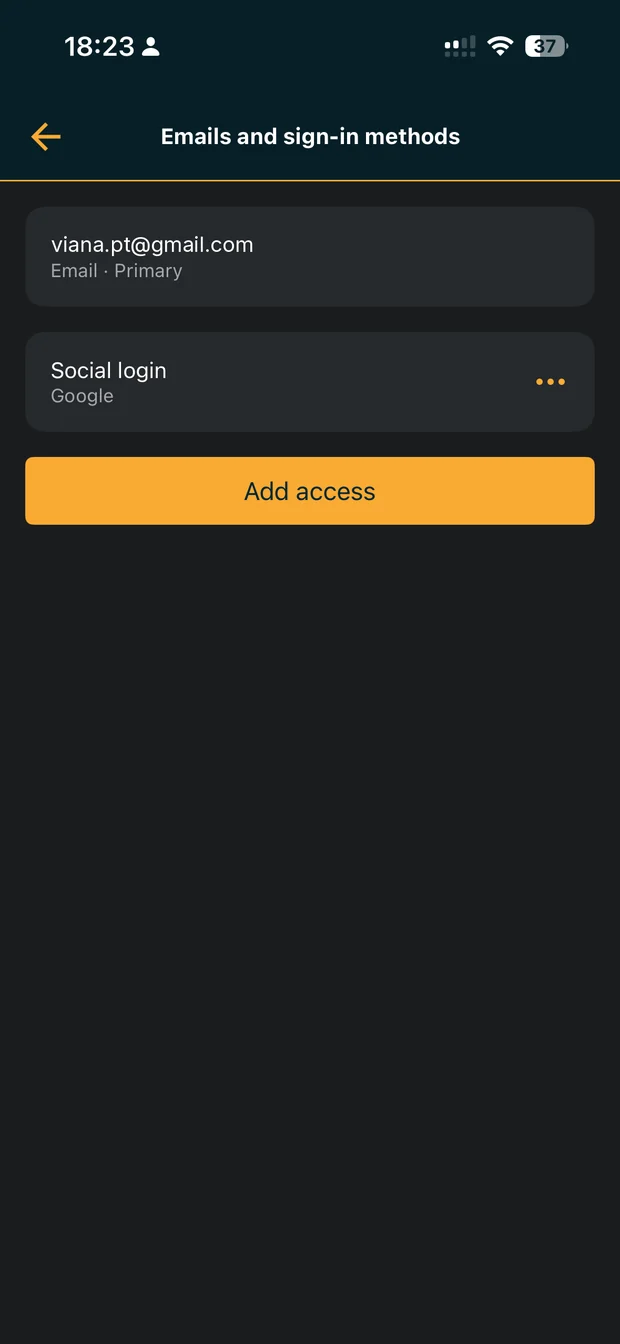
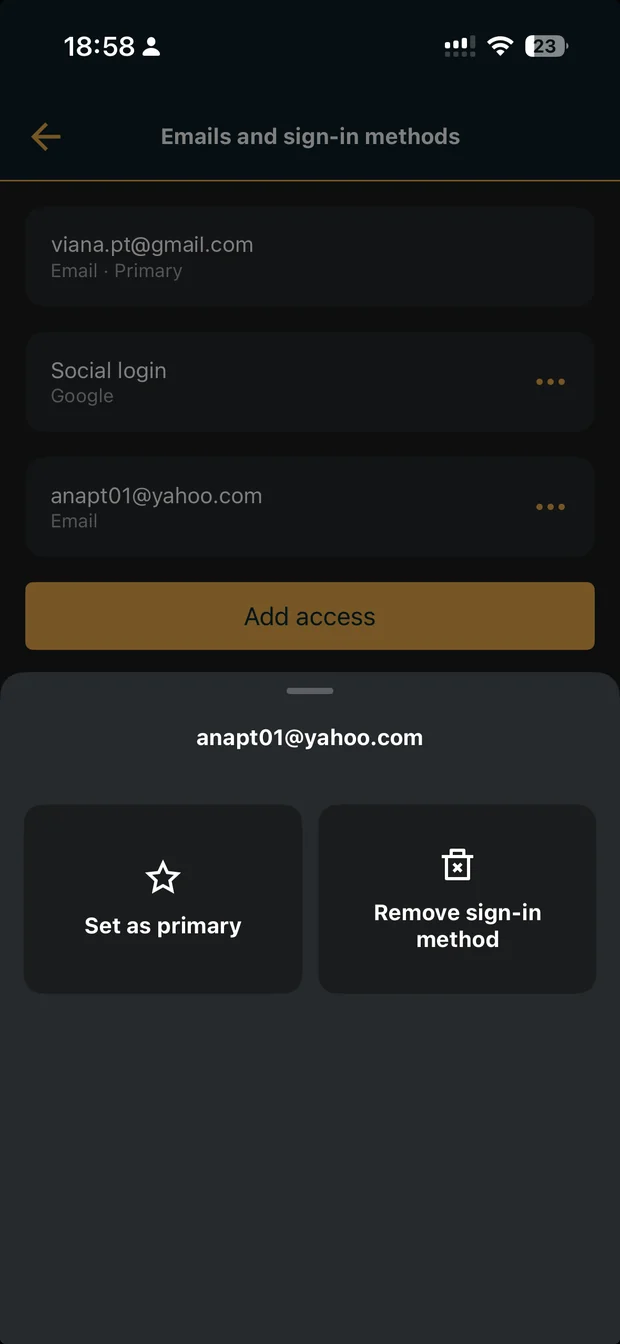
Ended up with two accounts (say, one from your trainer’s invite and another under a different email), with your workouts and connections split between them? You can merge everything into one. In the side menu, go to Make the app yours › Account management › Emails and sign-in methods, and tap Add access. Confirm your current account, then add the other email (or sign in with Google or Apple). If that email already has its own account, choose which one will be your main account.
When this happens
- You signed in with a different email, or with Google or Apple, and the app created a new account without your workouts or connections.
- Your trainer or client can’t find you, or can’t see a workout, because one of you is signed in to a different account.
- You use more than one email and want all of them to open the same account.
How to merge your accounts
- Sign in to the account you use most.
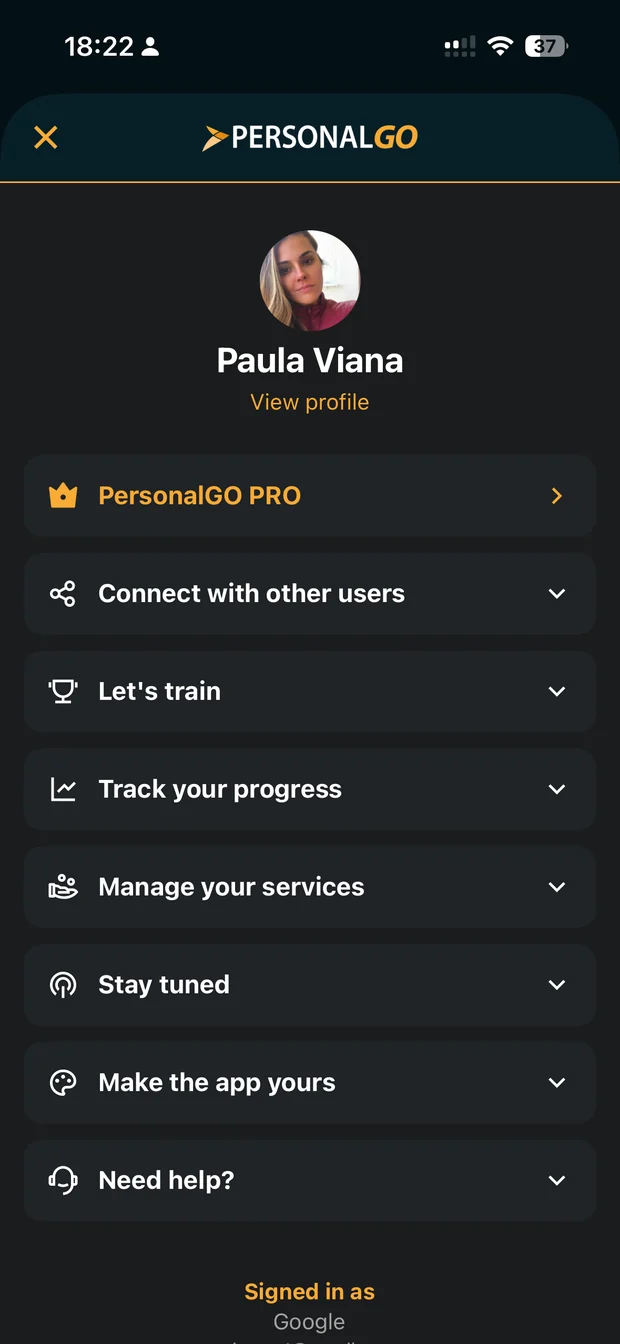
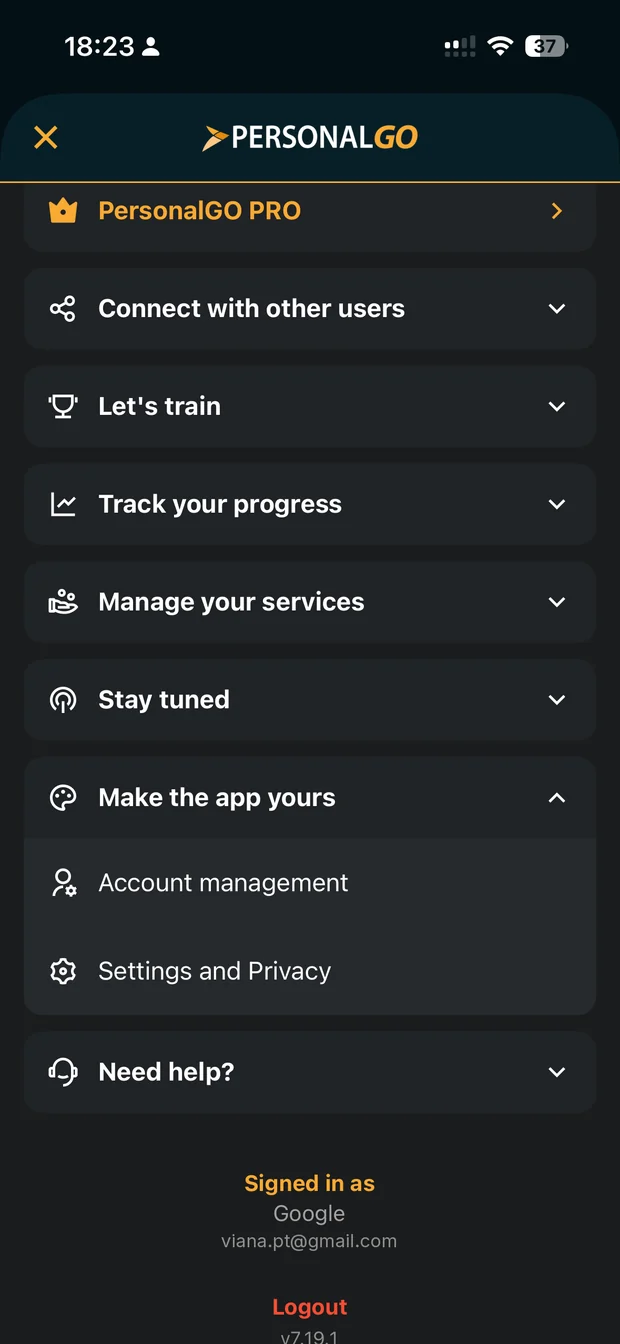
- Open the side menu , tap Make the app yours, then Account management.
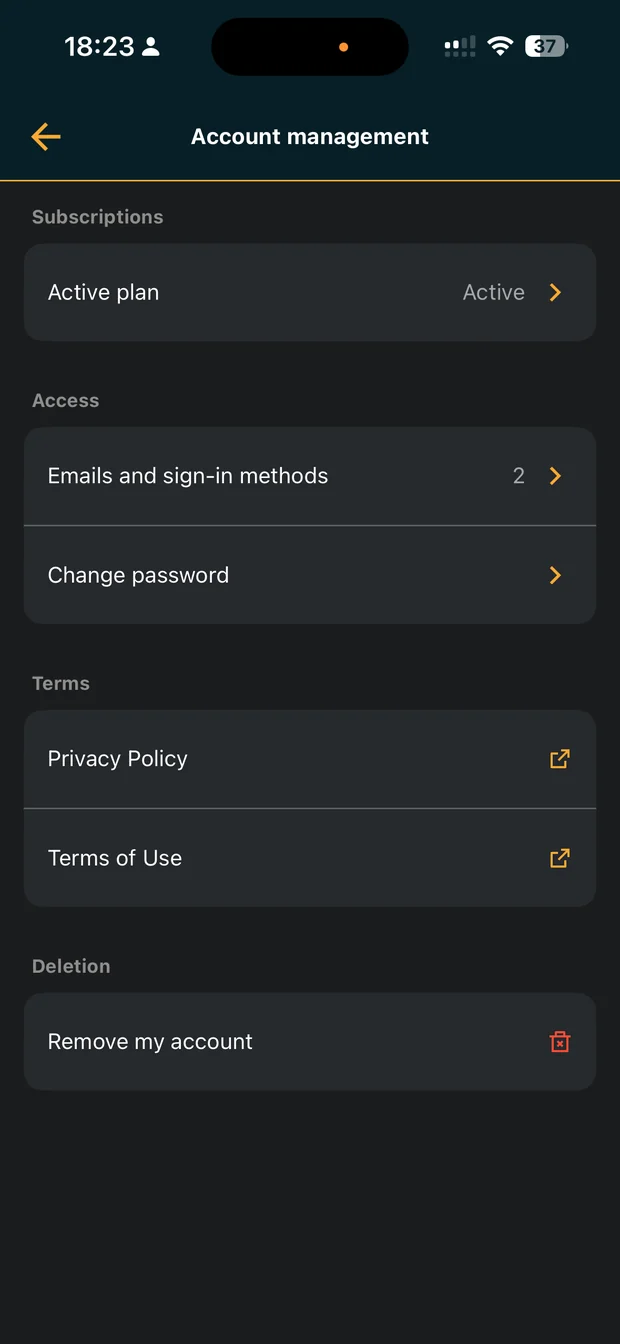
- Under Access, tap Emails and sign-in methods. You’ll see the sign-in methods already linked to this account.
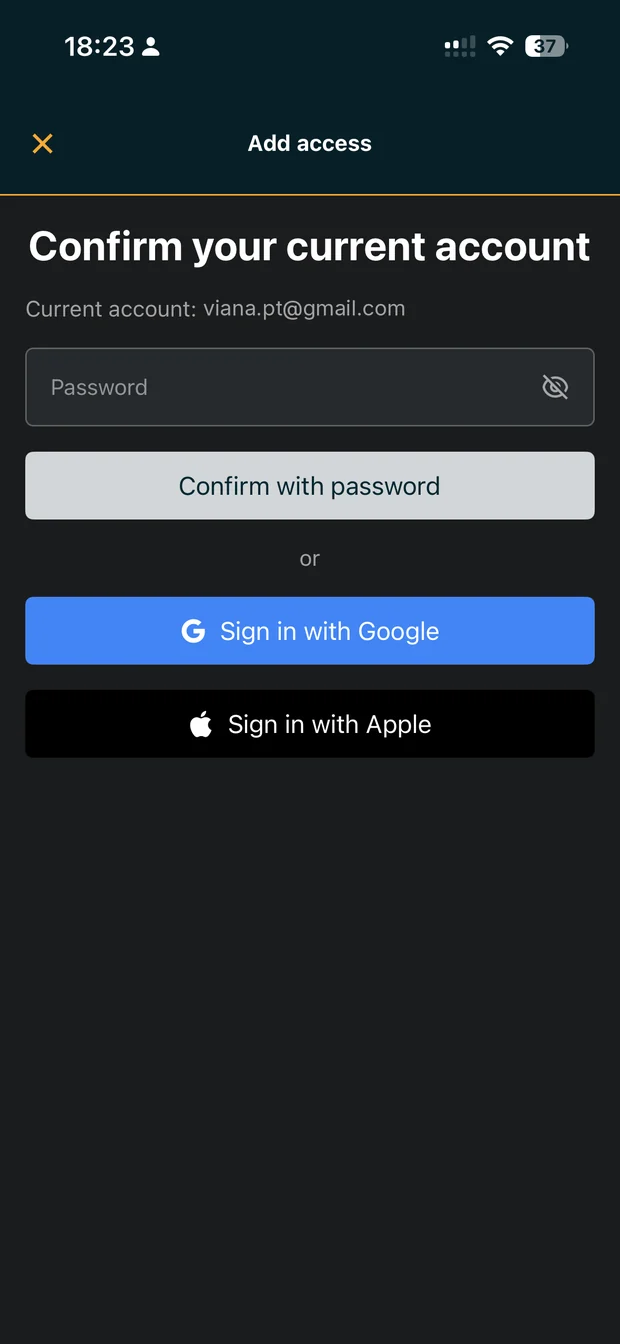
- Tap Add access. On the Confirm your current account screen, enter your password and tap Confirm with password, or sign in with Google or Apple.
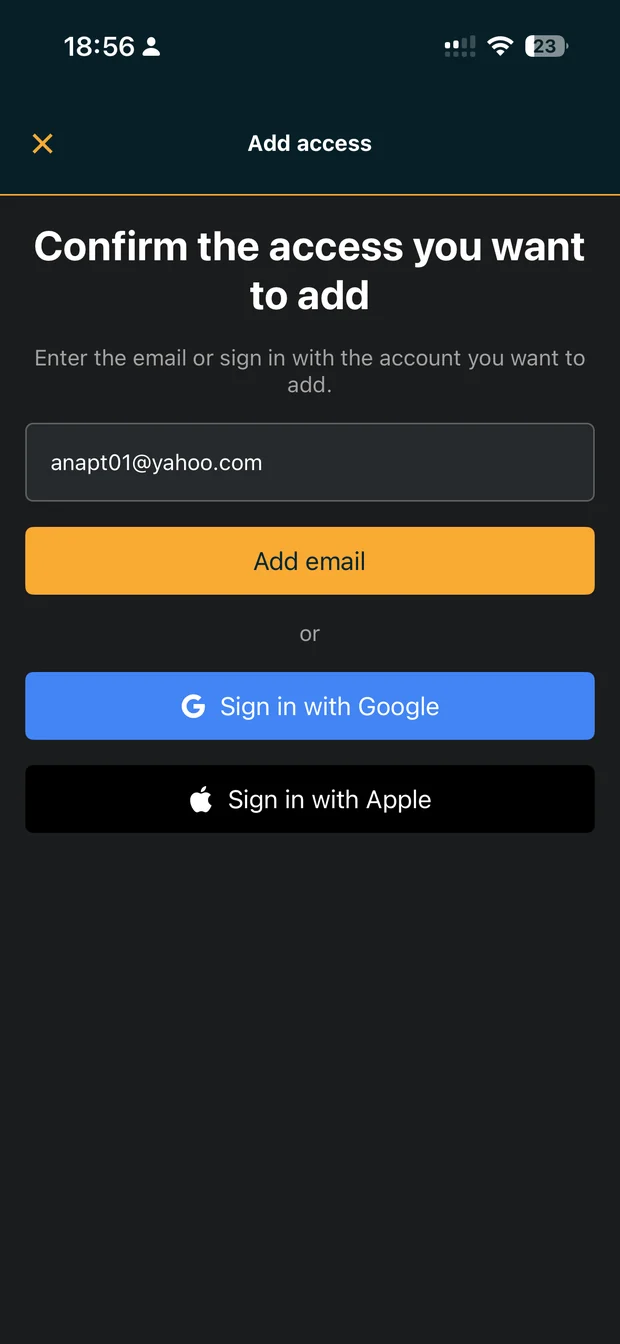
- On the Confirm the access you want to add screen, enter the other email and tap Add email. Or tap Sign in with Google or Sign in with Apple.
What happens next depends on the other email:
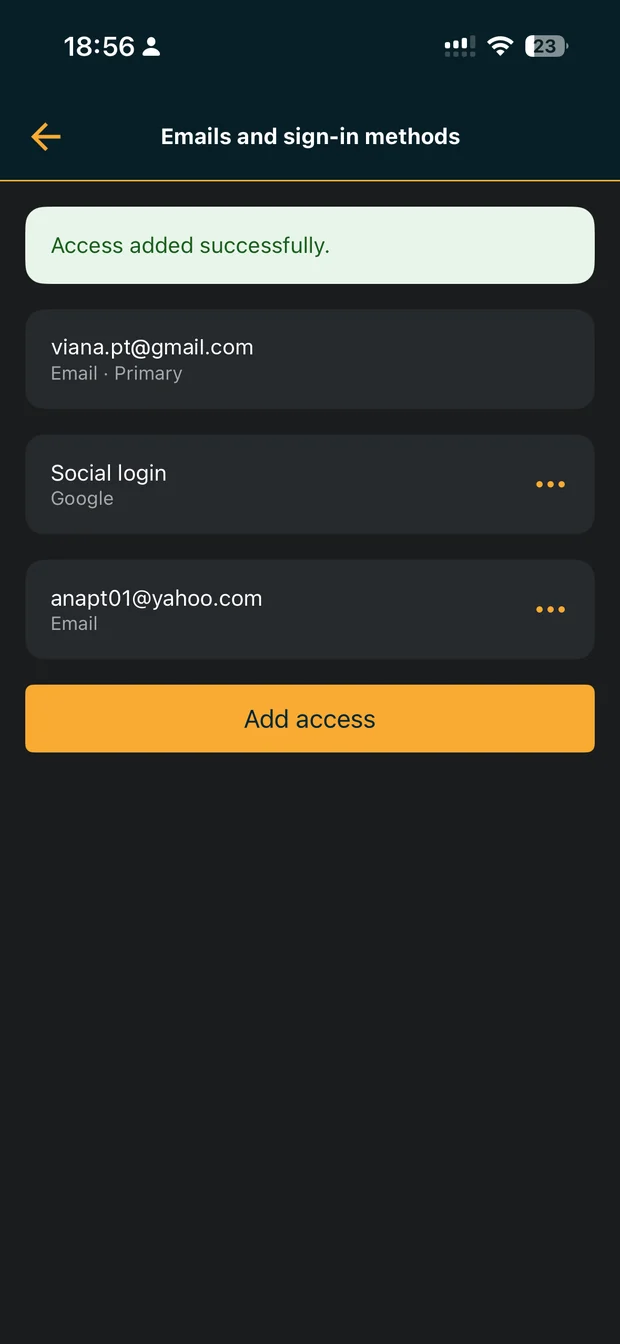
- If it doesn’t have an account yet, we send a 6-digit code to that inbox. Enter the code to confirm it’s yours, and you’ll see Access added successfully. From then on, that email signs you in to the same account.
- If it already has a PersonalGO account, enter that account’s password to confirm. Then tap the star next to the account you want as your main one (its profile is the one that stays) and confirm the merge. The other account, including its workouts, measurements, and connections, is merged into the main one.
Also new: invites work with existing accounts
Invite links now work for people who already have a PersonalGO account. They just sign in with the email, Google, or Apple account they already use, and the invite (along with the workout program) goes straight to that account.
Contact our team
Tell us the emails you use to sign in and what you’ve already tried. A screenshot helps too.
Message us on WhatsApp or email contato@personalgo.app